
Tools that Everyone Needs Pt. 2
Creating your own layer mask

In my last post, I talked some about what layer masks are and demonstrated one of the ways to get them made for you. But what if you want to make your own? In this post, I’ll show you exactly how to do that.
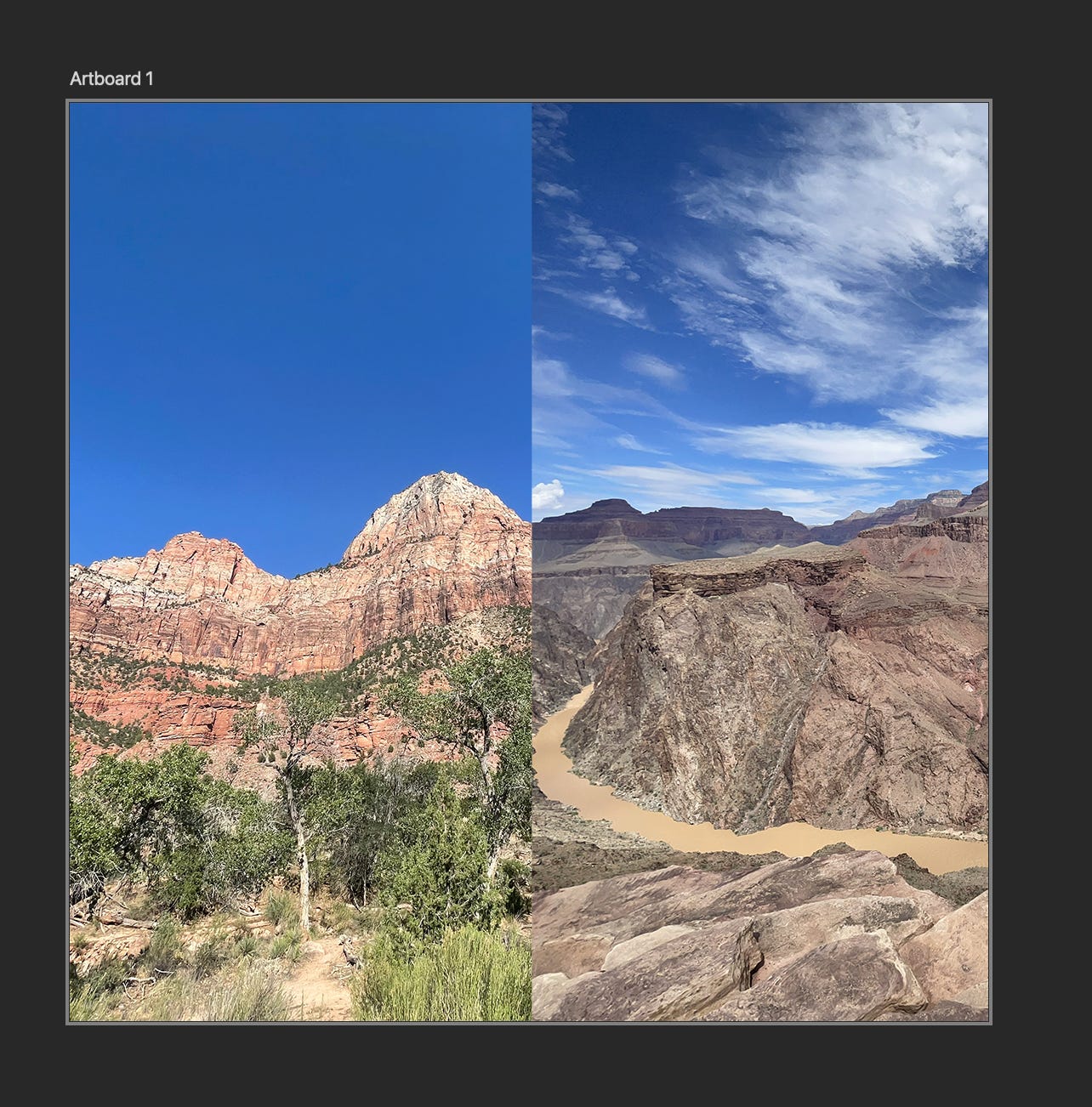
Say that I want to merge these two images together to make a smooth transition between the two. To start, select whichever layer is on top and click on the rectangle with a hole in the middle to create the mask.

With that done, select the white layer mask on the right, then gradient tool from the toolbar, shown as a fade from black to white below. Once selected, make sure that the gradient is set to black from white, with black representing 100% transparency and white representing 0% transparency.

Using the tool, drag it across the picture for the length you’d like the fade to go and release.
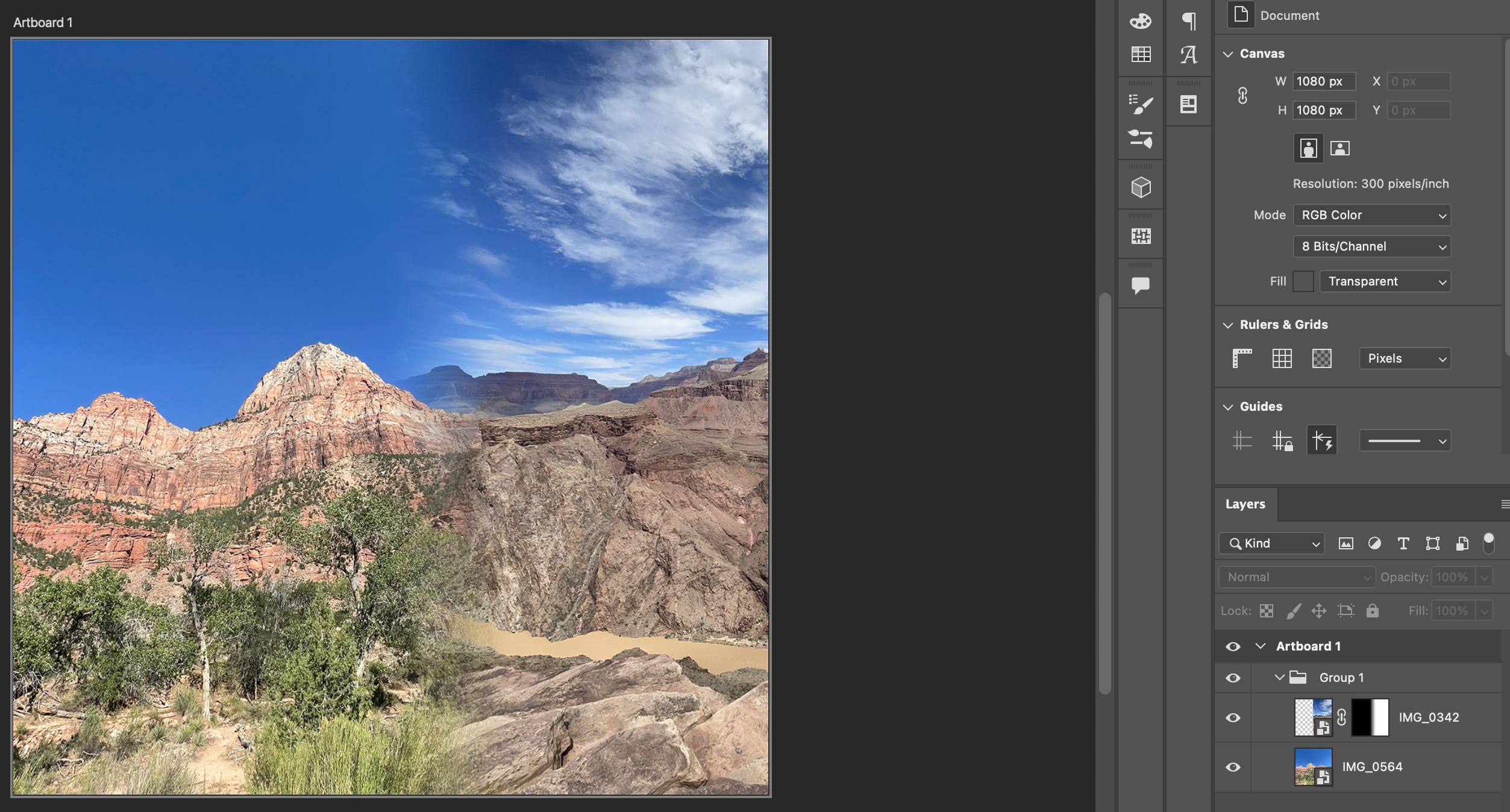
Once done, you’ll see that the layer mask shows the black to white fade linked to the image and that the end result is a transition between the layers.
If you’d like to see more defined tutorials like this, make sure to check out my TikTok where I post more specific tutorials!